
I’ve been meaning to get to this for a while, and finally tackled it this past week. Herewith, a tutorial on using the ‘Curves’ function in many image editing programs to adjust brightness and contrast within an image, selectively as needed.
As noted therein, this won’t work very well if your monitor is poorly calibrated for brightness, contrast, and gamma, so it’s recommended to tackle this first if needed before making any adjustments to your images. You can find a guide with useful images at https://w4zt.com/screen/.
One of the benefits of Curves is that it maintains a gradual change, with neighboring or flanking values within the image receiving some effect too, so no single area becomes drastically (and noticeably) different from another, a sure sign of manipulation and, too often, creating an unrealistic and bizarre appearance. It can still occur though, so keep an eye on all areas within the photo when doing editing, to spot those little patches that can sneak in and look out of place.
I said it several times in the video and now I’ll put it in writing: be subtle. When editing, it’s very easy to keep pushing things a little farther, since we seem to become insensitive to how far is ‘too far,’ so I recommend setting aside the edited version for a little while, looking at something else, and coming back to it fresh to see if it still looks acceptable. These suddenly renewed ‘first impressions’ can count for a lot, because anyone else may have that same first impression.
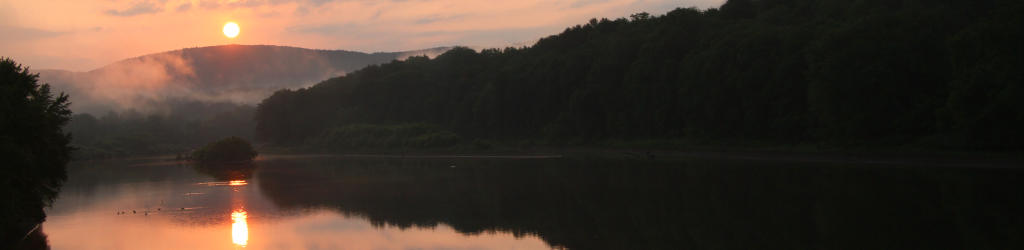
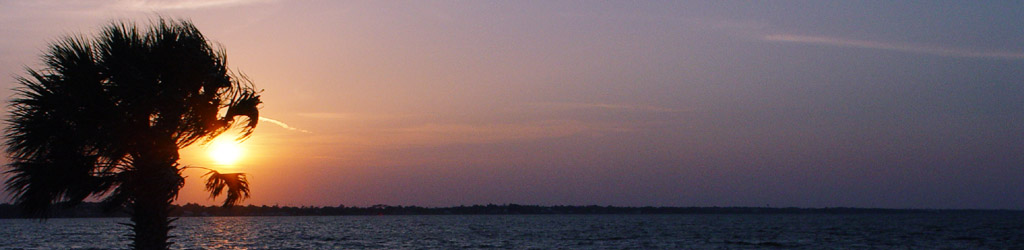
Also, you can use the various selection tools within your editing program to pick portions of the image to tweak in Curves while leaving the rest alone, which could have been done with the trees at sunset example – just be sure to Feather the edges of the selection to fuzz out and make the border of the selected area indistinct, otherwise if will often show very clearly.
Part 2 is coming next week (I think,) and involves using Curves for color corrections, as well as some creative editing. Meanwhile, this post documents one of the most specific adjustments that I’ve performed, as an extreme example. Yet to me at least, it still looks more realistic, and less doctored, than some of the fartistic approaches I’ve tried. Which is still fine, but those latter examples cross the personally-drawn line between a photo and a digital creation – you may have your own line, or none at all, but I still feel that accomplishing it “in-camera” is where the real skill lies.
Later weekly posts in the Tip Jar topic will expand on some of the things covered here, so I wanted to establish a baseline of knowledge first, for those who haven’t used such functions before.
Play around, and have fun with it!